Managing digital files is part of everyday life. Whether you are
preparing product photos for an online store, compressing images
for a website, converting iPhone pictures, or extracting text from
scanned documents, having the right tools can save considerable
time.
The challenge is that many online file utilities require users to upload their
images or documents to remote servers. While cloud-based processing can be
convenient, it is not always the ideal option for files containing personal,
confidential, or business-related information.
Fortunately, modern web browsers are capable of handling many file-processing
tasks directly on your device.
In this guide, we explore the advantages of browser-based image and PDF tools,
the tasks they can simplify, and how free platforms such as ImageToolSpace
make everyday file management more accessible.
Why Browser-Based File Tools Are Becoming More Useful
Traditionally, editing images or working with PDF documents required installing
dedicated software. Online tools made many of these tasks easier, but they often
introduced additional steps, including uploading files, waiting for server
processing, and downloading the results.
Browser-local tools take a different approach.
Instead of transferring the file to a processing server, the website provides the
functionality needed for the browser to perform the operation on the user’s own
device.
This approach offers several practical advantages.
1. Greater Control Over Your Files
When processing happens locally, users do not need to submit their original
documents to a remote file-processing service.
This can be particularly valuable when working with identification documents,
photographs containing location information, scanned paperwork, or internal
business files.
It is still important to review a website’s privacy policy, as browser-based services
may use analytics or other supporting services. However, local file processing
reduces the need to transfer the actual file for routine editing tasks.
2. No Complicated Software Installation
Many common operations can be completed directly in a modern browser.
Users can open a tool, select their files, adjust the required settings, and
download the result without installing a traditional desktop application.
This is convenient for students, small businesses, content creators, freelancers,
and anyone who occasionally needs to prepare documents or images.
3. A Simpler Workflow
Most people do not need professional editing software to resize a photograph,
convert an image format, or make a scanned PDF searchable.
For these focused tasks, a purpose-built browser tool can provide a more direct
experience.
7 Practical Tasks You Can Handle With Free Online Tools
1. Compress Images Without Complicated Software
Large image files can slow down websites, make email attachments harder to
send, and consume unnecessary storage space.
An image compressor helps reduce file size while allowing users to balance visual
quality and compression.
This is especially useful for:
● E-commerce product photographs.
● Blog and website images.
● Email attachments.
● Social media content.
● Large personal photo collections.
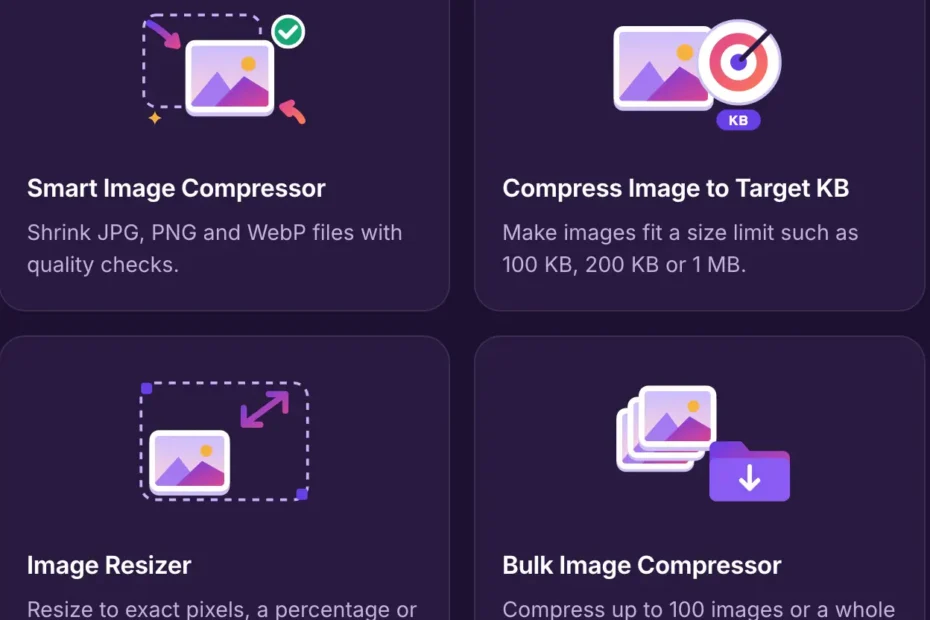
For users managing multiple images, a bulk compressor can be even more useful.
Rather than processing every file individually, users can compress an entire
collection and download the results together.
For example, the Bulk Image Compressor from ImageToolSpace offers
browser-based batch compression with quality controls and ZIP downloads.
When choosing compression settings, remember that lossy compression can
reduce image quality. The ideal setting depends on whether the image is intended
for web publishing, printing, or archival storage.
2. Convert Images Between Different Formats
Different image formats serve different purposes.
JPEG is widely compatible and useful for photographs. PNG supports lossless
image data and transparency. WebP can provide efficient compression for web
content.
HEIC is commonly encountered on Apple devices, but it may not be accepted by
every website, application, or document system.
A reliable image converter makes it easier to switch between these formats
without complicated software.
For example, converting an HEIC image to JPG can make an iPhone photo easier
to share with systems that do not support HEIC.
Before converting, consider whether maintaining transparency, maximum image
quality, or a smaller file size matters most.
3. Turn Scanned PDFs Into Searchable Documents
A scanned PDF may look like an ordinary document but contain only images of
its pages.
This means users cannot always search for words, select text, or copy information
directly.
Optical Character Recognition, commonly called OCR, helps solve this problem.
OCR software analyzes text in scanned pages and converts it into
machine-readable information.
A searchable PDF can make it easier to organize:
● Scanned invoices.
● Business documents.
● Educational materials.
● Archived paperwork.
● Receipts and records.
The OCR PDF tool on ImageToolSpace is designed to make scanned PDFs
searchable through local browser processing.
OCR accuracy depends on factors such as image resolution, lighting, document
quality, text orientation, and language. Important information should always be
reviewed after recognition.
4. Remove Hidden Metadata From Photos
Digital images often contain information beyond the visible picture.
Depending on the device and file format, this metadata can include:
● Camera manufacturer and model.
● Date and time of capture.
● Exposure settings.
● Software information.
● GPS coordinates.
Location metadata deserves particular attention when sharing photographs
publicly.
A photo taken on a smartphone may contain geographic information that the
person sharing it did not intend to disclose.
Using an image metadata viewer allows users to inspect this information before
publishing.
A metadata remover can then remove selected information from supported files.
This is useful for photographers, bloggers, online sellers, and individuals who
want more control over the information attached to their images.
5. Prepare Safer Copies of Identification Documents
There are legitimate situations where a business or organization may request a
copy of an identification document.
However, sharing an unmodified ID image can expose more information than the
recipient actually needs.
A privacy-focused ID preparation tool can help users obscure unnecessary details
and add a watermark indicating the purpose of the copy.
For example, a watermark may identify the intended recipient or state that the
copy is intended for a particular verification process.
This does not eliminate every risk associated with sharing identity documents,
and users should avoid hiding information that a legitimate verification process
requires.
Nevertheless, thoughtful redaction and purpose-specific watermarks can provide
useful additional safeguards.
6. Find Duplicate Photos
Over time, photo libraries often accumulate identical and nearly identical files.
This can happen when images are downloaded repeatedly, copied between
folders, or exported in different versions.
Duplicate detection tools help users identify files that may no longer be needed.
There are two important methods:
Exact file matching checks whether two files contain identical bytes, often using
cryptographic hashes.
Visual similarity detection looks for pictures that appear alike, even when their
dimensions, compression, or file formats differ.
These methods answer different questions, so a good duplicate finder should
clearly distinguish them.
Users should review detected groups before deciding what to keep.
7. Verify Images Using Cryptographic Hashes
A cryptographic hash is a calculated value representing the exact contents of a
file.
SHA-256 is commonly used to verify file integrity.
When two files have identical SHA-256 hashes, that provides strong evidence
that their byte contents are identical.
Even a small modification to a file will normally result in a different
cryptographic hash.
An image hash checker can therefore help verify whether an image has changed
during storage, transfer, or processing.
However, two photographs that look identical may have different SHA-256
hashes if one has been recompressed or contains different metadata.
For detecting visual similarity, perceptual hashing is a separate and more suitable
technique.
What to Look for in a Free Image or PDF Tool
Not all online utilities offer the same features or safeguards.
Before choosing a service, consider these questions.
Does the tool process files locally?
Check whether the service explicitly explains how files are handled. A
privacy-first design should make the processing method understandable.
Can you preview the results?
A preview helps identify incorrect cropping, unexpected compression artifacts,
incomplete redactions, or other issues before downloading.
Does the tool support batch processing?
For people working with many images, batch processing and ZIP export can save
substantial time.
Are the limitations clearly explained?
Reliable tools should disclose supported formats, file-size limits, browser
requirements, and potential accuracy limitations.
Can you use it without an account?
For simple tasks, avoiding unnecessary registration makes the experience faster
and more convenient.
ImageToolSpace: A Practical Example of Browser-Local Processing
ImageToolSpace brings together free tools for image compression, resizing,
format conversion, PDF OCR, metadata management, document preparation,
and file inspection.
Its core approach is straightforward: choose a tool, process your file inside the
browser, review the output, and download the result.
The platform emphasizes three practical benefits:
● Free access without mandatory account registration.
● Browser-local processing for supported file operations.
● Focused workflows for common image and document tasks.
Instead of requiring a different desktop application for every small operation,
ImageToolSpace provides a collection of task-specific tools accessible from a
single website.
For anyone who regularly works with photographs, scanned paperwork, image
formats, or document privacy, this type of toolkit can be a useful addition to their
workflow.
Final Thoughts
Online file tools are most valuable when they make routine tasks faster without
creating unnecessary complications.
Compressing photos, converting formats, extracting text from documents,
removing metadata, and checking file integrity are all common activities that
benefit from simple, reliable interfaces.
Browser-based processing also offers an important alternative to traditional
upload-based services, particularly when users want to keep closer control over
their files.
If you are looking for a free collection of tools covering these everyday needs, you
can explore ImageToolSpace and choose the utility that best fits your task.
The most effective tool is ultimately the one that gives you a correct, usable result
with the least unnecessary effort.